Tasker 101: 5 Useful Profiles to Help Get You Started with Android Automation

Tasker 101: 5 Useful Profiles to Help Get You Started with Android Automation
When it comes to automation apps on Android, Tasker is still the king of the hill. For a price of $2.99 on the Google Play Store, it's a great buy for any would-be tinkerer that would like to get into automating actions on their Android device. Then, when you consider that there's a free 7-day trial version available, there's almost no reason that you shouldn't at least test the waters with Tasker.But if you're like me, after hearing about of all the awesome things you can do with Tasker, you installed the app and poked around for 5 minutes before deciding it was too complicated to get into. Eventually, though, I made my first profile, and things started to come together for me. So there's definitely a learning curve with Tasker, but once you've figured out how to make a few simple profiles, it starts getting a lot easier in no time.In an effort to get you on the upward swing of said learning curve, I've come up with 5 simple Tasker profiles that demonstrate several key functions of the app, while simultaneously giving you an idea of how powerful and practical Tasker can be. So hopefully, once you've walked through the steps of creating these profiles, you'll have enough basic knowledge and experience that you'll be able to hit the ground running with your own Tasker creations.
Learning the LingoOne of the first major hurdles when dealing with Tasker is learning what the main functions actually do. To put it simply, Tasker operates a lot like one of the most basic computer programming commands: "If this happens, Then do that." But Tasker uses a different set of names for these functions, so I'll give you some plain-English definitions for the 3 main functions we'll be dealing with today:Profile: A condition (or set of conditions) that must be met before any automated actions (Tasks) will be triggered. Task: An action (or set of actions) that will be automatically triggered when your Profile's conditions are met. Exit Task: An action (or set of actions) that will be automatically triggered as soon as your Profile's conditions stop being met.Don't Miss: How to Create a Task in Tasker
Before We BeginFor this first profile, I'll go over each step in great detail, using screenshots to depict every button press in the process. But once you've got the general gist of how creating a profile works, I'll assume you've learned your way around a bit, and I won't bore you with redundant details in the profiles that follow. So if you're just starting off with Tasker, please be sure to at least walk through the first profile before skipping ahead to any others.
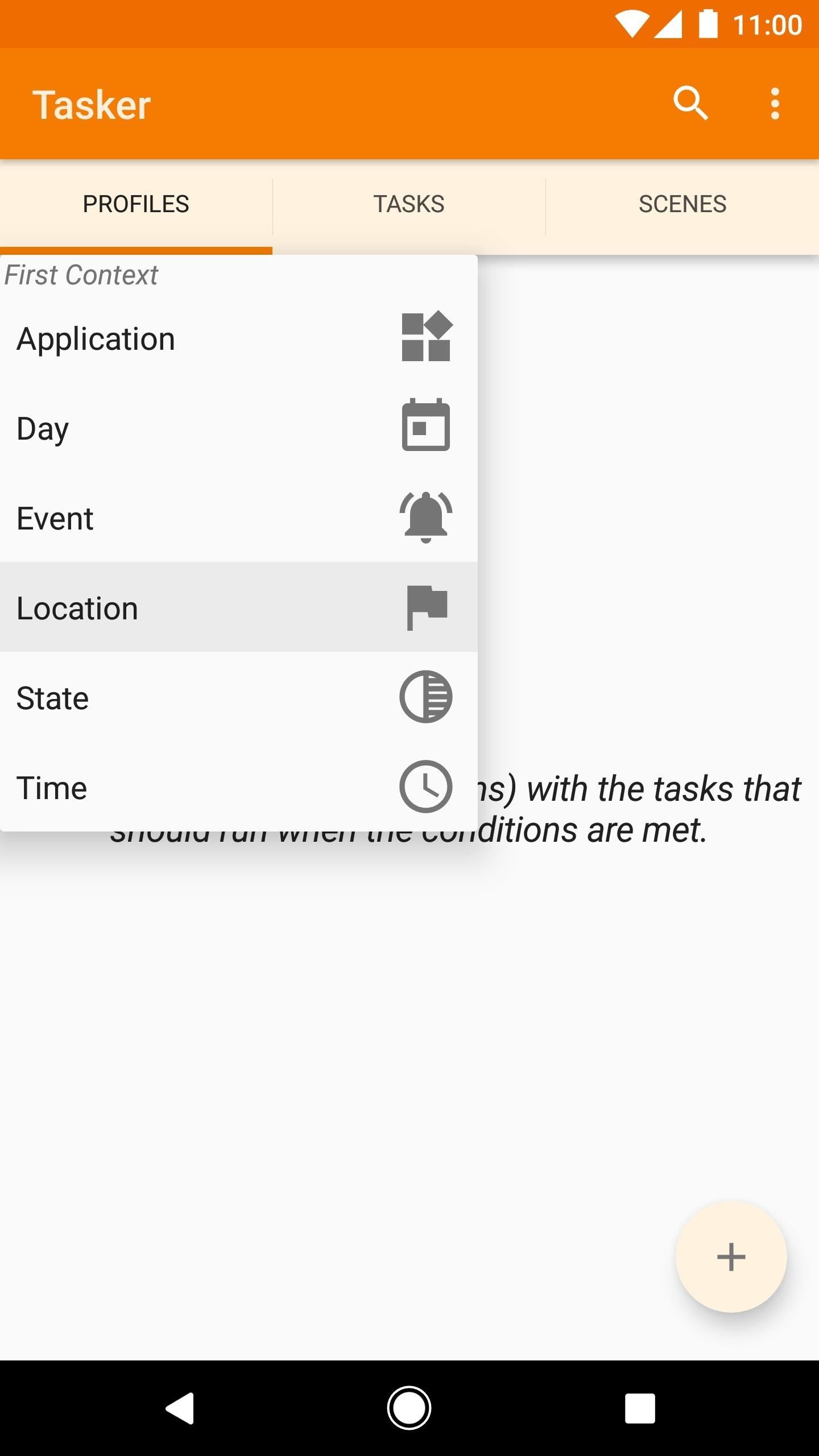
Profile #1: Enable Wi-Fi When You're at HomeThis first profile is simple to make, but quite useful nonetheless. Say, for instance, that you only use Wi-Fi when you're at home. At all other times, your active Wi-Fi radio is draining your battery unnecessarily, so let's have Tasker turn Wi-Fi off when you're on the road, then turn it back on when you get home.From the Profiles tab in Tasker's main menu, start by tapping the + button in the bottom-right corner, then selecting the "Location" option. Next, tap the GPS icon near the top of the screen (while you're at home) to get a fix on your location. When you're done here, tap your device's back button to head out to Tasker's main menu again. Next, Tasker will prompt you to name this location, so type "Home" into the provided text field, then hit the check mark. At this point, you've finished creating your first profile. As you'll notice going forward, Tasker will always immediately prompt you to associate a task with any newly-created profile.So after naming your location and hitting the check mark to finalize your profile, a small pop-up will appear. Tap "New Task" on this pop-up, then you'll be given an opportunity to name this task. As it says, this part is optional, since naming your tasks really only helps with organization. So to simplify things for now, I'd suggest leaving the field blank and just tapping the checkmark here. Next up, you'll be taken to the Task Edit screen—this is where you can add a new action or set of actions to your task. To do so, tap the + button at the bottom of the screen, then you'll be presented with a menu that contains all of Tasker's available actions in various categories.Rather than sifting through the categories to find the action you're looking for, I'd suggest using the Filter field at the bottom of this menu. So type "WiFi" into this field, then select the action labeled simply "WiFi." At this point, you'll be taken to the Action Edit menu, which allows you to specify certain properties for any action in your task. Using this particular profile as an example, we've selected "WiFi" as an action for our task, and now the Action Edit menu will allow us to specify exactly what we want to do with Wi-Fi.Since our location-based profile will trigger this task when we arrive at home, we want Wi-Fi to be turned on in this instance. So tap the drop-down menu directly beneath the Set category, then select "On." At this point, you've finished creating your first task, so tap your device's back button twice to review your work on Tasker's main menu. Next, it's time to create an exit task to automate the process of turning off Wi-Fi when you leave home and your profile's conditions stop being met.To do that, long-press your initial task (which should be labeled "WiFi On"), then choose "Add Exit Task" from the menu that pops up. From here, select "New Task," and again, you can give this task a name if you'd like, but otherwise, leave the field blank and tap the check mark. An exit task operates in exactly the same manner as a regular task, so these next few menus should already seem familiar to you. Start by tapping the + button at the bottom of the screen to add an action to your exit task, then use the next menu to search for "WiFi" again.After selecting the action labeled simply "WiFi" again, you'll be taken to the Action Edit menu. This time, since you're telling Tasker what you want it to do when you're not at your profile's location, leave the Set category set to "Off," then tap your device's back button twice to head out to the main menu. Congratulations, you've just created your first Tasker profile! To get a feel for how it operates, just take a peek at the screenshot below. First, you'll see that your profile only becomes active when your device is at home. Once active, your profile executes the "WiFi On" task, which turns your Wi-Fi radio on, of course. When you leave home and the conditions of your profile stop being met, the "WiFi Off" exit task will be triggered, which will turn your Wi-Fi radio off again.
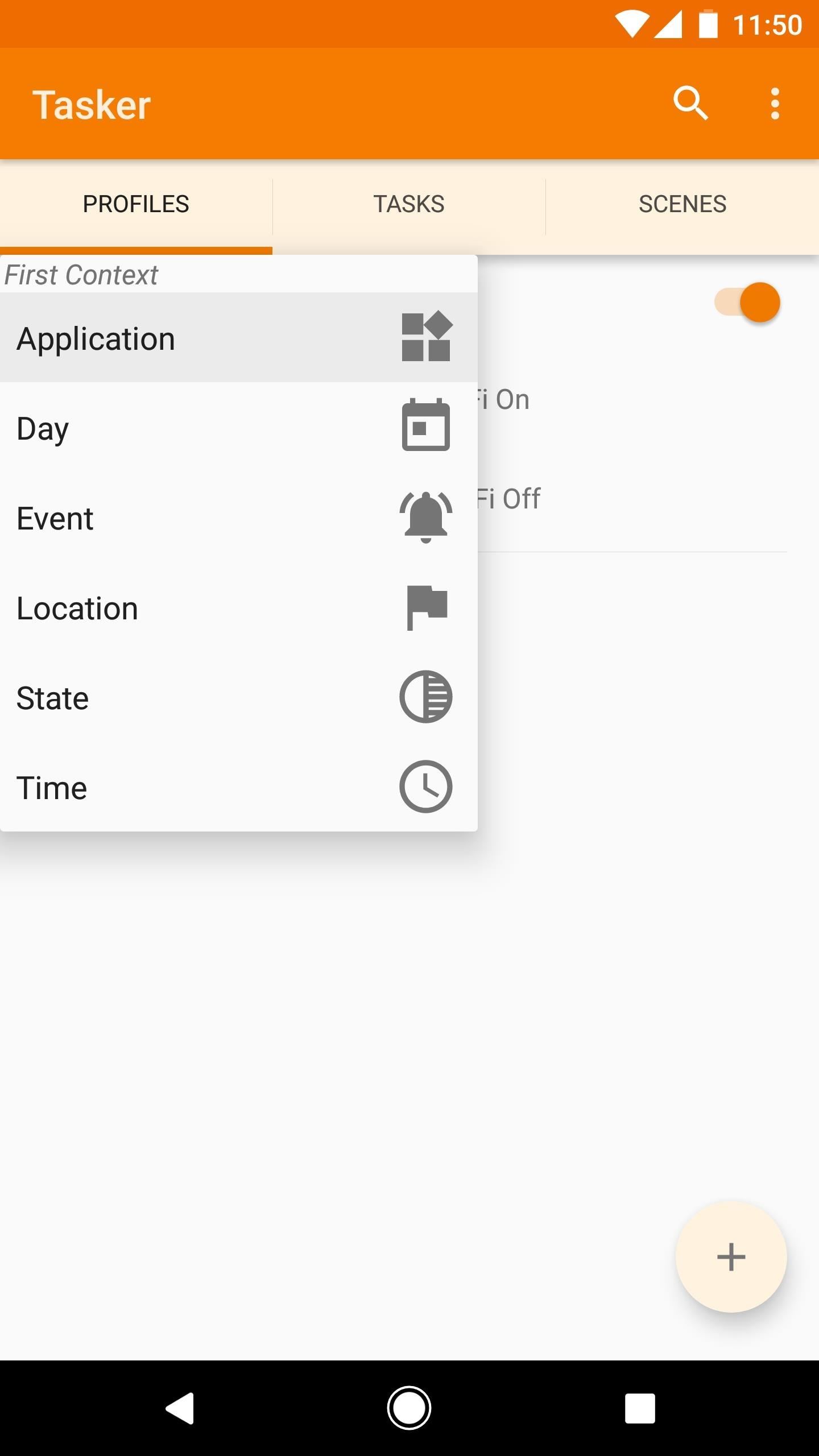
Profile #2: Disable Auto Rotation in Certain AppsThis second profile will be useful if you have any apps that you'd like to lock into portrait orientation. Rather than disabling auto-rotation on your entire phone, you can have Tasker disable it for you, but only when you're using certain apps.From the Profiles tab in Tasker's main menu, tap the + button in the bottom-right corner, then select "Application." Next, you'll see a list of all the apps you have installed on your phone. Tap any of the apps in this list to select them, then press your device's back button once. At this point, Tasker will inform you that you need to enable its Accessibility service to use this feature, so press "OK" on the pop-up. From here, you'll be taken to a system settings menu. Select the "Tasker" entry here, then on the next screen, toggle the switch to "On." Next, press "OK" on the pop-up to verify your selection, then tap your device's back button twice to head back out to Tasker. From here, you'll be prompted to associate a new task with the profile you've just created. Tap "New Task," then press the check mark when asked to name your task.Once in the Task Edit menu, tap the + button at the bottom of the screen to add a new action to your task, then use the filter field to search the term "rotate" and select the "Display AutoRotate" entry. Finally, make sure the Set category in the Action Edit menu is set to "Off," then press your device's back button twice. From Tasker's main menu now, long-press your newly-created task (Display AutoRotate Off), then select "Add Exit Task." After that, create your new task, then add another "Display AutoRotate" action to it. Finally, change the Set category to "On," then press your device's back button twice. Reviewing your work, you'll see that when any of your selected apps are in use, your profile will become active. Once active, your profile will disable automatic screen rotation, but once you leave any of your selected apps, the exit task will kick in and turn auto-rotation back on.
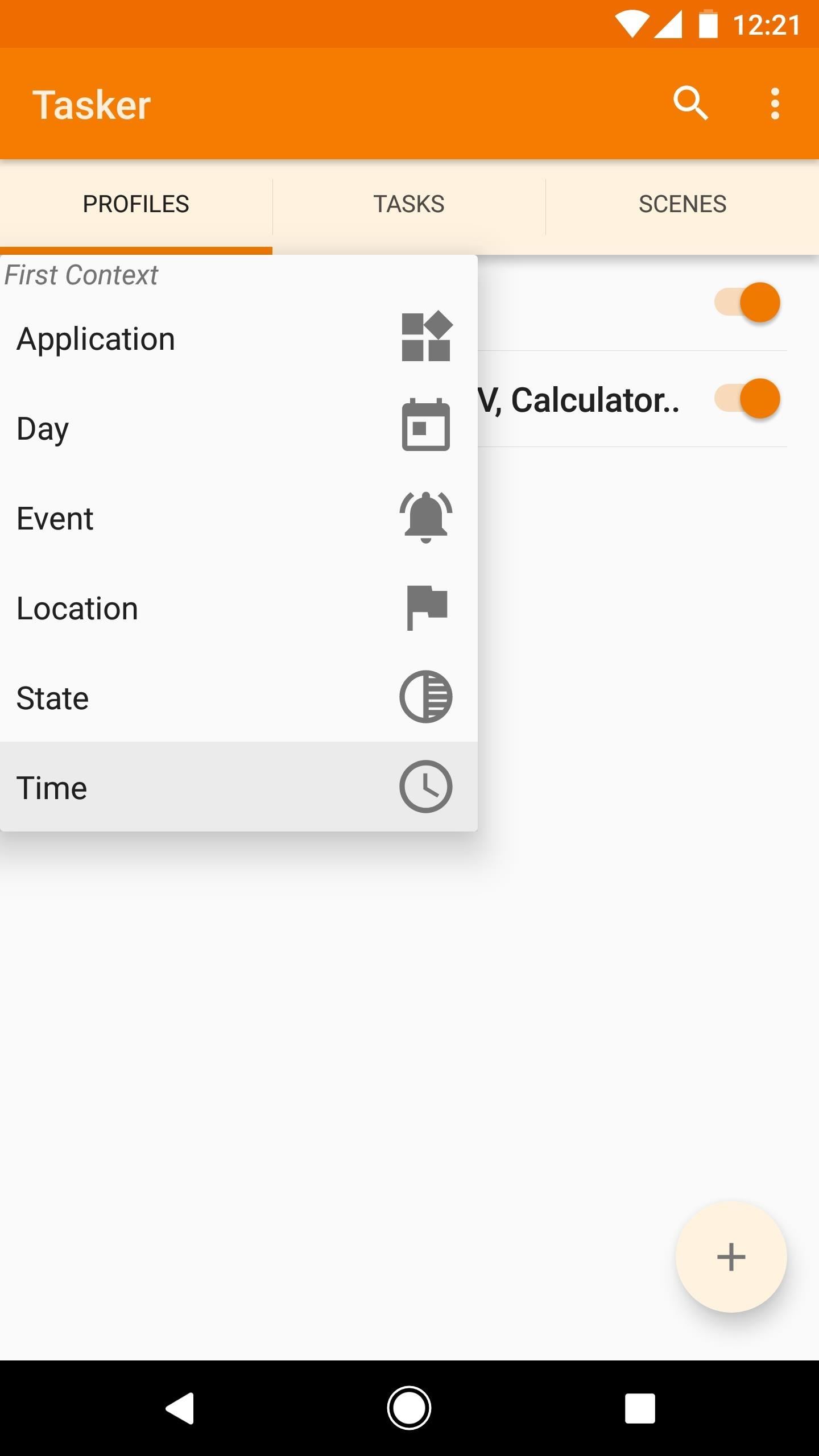
Profile #3: Lower Your Ringtone Volume During Work HoursThis next profile demonstrates Tasker's time-based functions, which can come in handy for triggering events that coincide with your weekly schedule. For this example, we'll be lowering the ringtone volume during normal work hours.To begin, tap the + button in the bottom-right corner of Tasker's main menu, then select "Time." Next, leave the selection boxes checked as they are, then set the times in the "From" and "To" fields to depict your normal work hours, and press your device's back button once. When prompted, go ahead and create a new task, then search the term "Volume" and select the "Ringer Volume" action. From here, use the slider near the top of the screen to set your preferred ringtone volume during work hours, then press your device's back button twice. Next, add an exit task to this profile, and again, go with "Ringer Volume" for the action. This time, use the slider to set your preferred ringtone volume during non-work hours, then press your device's back button twice. As you can see, the profile will only be active from 9 AM to 5 PM (unless of course you used different times). During those hours, your ringtone level will be lowered, but your exit task will kick in after work's over to raise the ringtone volume back up.
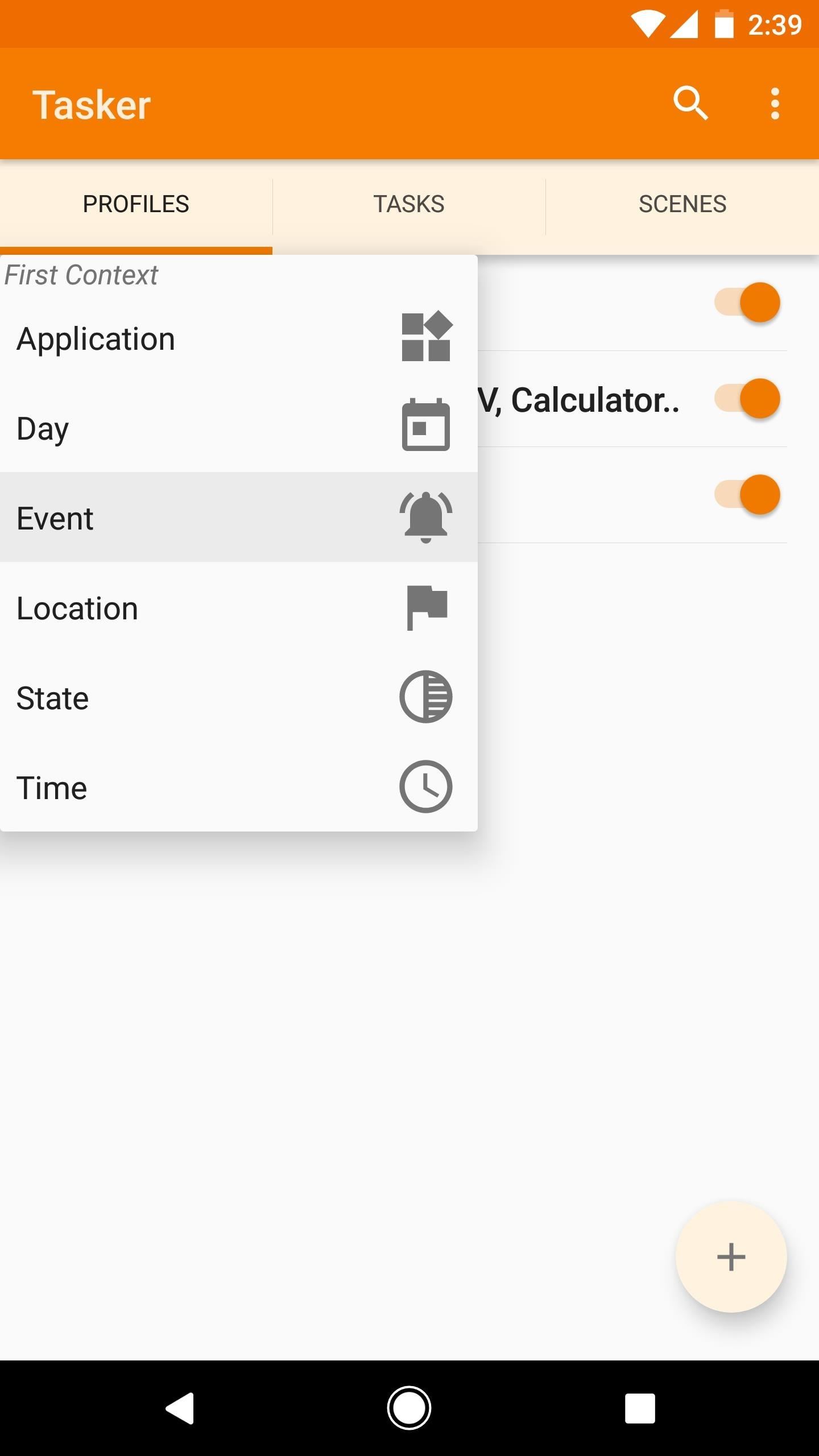
Profile #4: Open Weather App After Your Alarm Goes OffOur fourth profile demonstrates Tasker's Event functionality, which can be triggered when system functions are executed by your phone. In this example, we'll have Tasker launch your favorite weather app after your alarm goes off in the morning.To get started, hit the + button at the bottom of Tasker's main menu, then select "Event." From here, use the search function to locate and select the "Alarm Done" event, then just press your device's back button once when you see the Event Edit menu. Next, associate a new task with this profile, then search for and add the "Launch App" action to it. From here, select your favorite weather app, then press your device's back button two times to head back out to the main menu. From now on, after your alarm goes off in the morning, your favorite weather app will automatically be launched, so you'll know if you need to take an umbrella with you.
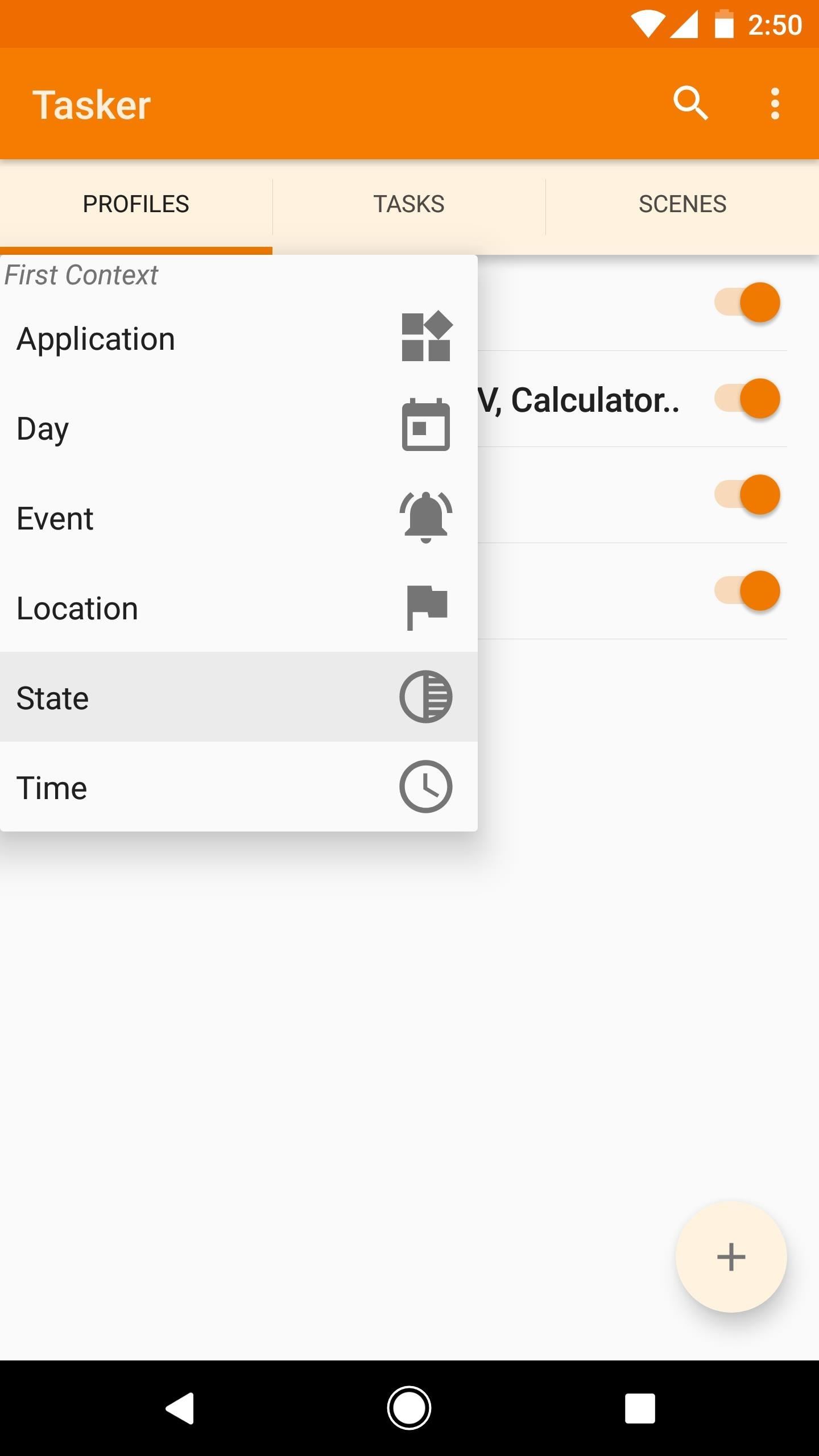
Profile #5: Start Playing Music When You Plug in HeadphonesThis final profile will demonstrate how to add multiple actions to a task. For this example, we'll be opening a music app and starting up the tunes as soon as you plug in a pair of headphones.To begin, create a new profile with "State" as the context. From here, search for and select the "Headset Plugged" state, then leave the State Edit menu set as it is and press your device's back button once. From here, add a new task as you normally would, then add your first action. Use the filter field to search for and select the "Launch App" action. Next, simply select your favorite music player from the list of apps. When you're done here, leave the Action Edit menu alone, then press your device's back button once. Now it's time to add a second action to this task. Tap the + button at the bottom of the screen again, then search for and select the "Media Control" action. From the Action Edit menu for Media Control, use the drop-down menu directly beneath the Cmd field to select "Play {Simulated Only}." When you're done here, press your device's back button twice to head out to Tasker's main menu. Next, add an exit task to this profile, but this time, go with "Media Control" as the first action. From here, select "Pause" from the drop-down menu beneath the Cmd field, then press your device's back button once. After that, hit the + button at the bottom of the screen to add a second action to your exit task. This time, search for and select the "Go Home" action, then use the slider at the top of the Action Edit menu to choose the home screen page that you'd like to see when you unplug your headphones. When you're done here, press your device's back button twice. Now you'll get a chance to review how a profile with multiple actions in the associated task will work. In this instance, when you plug in any headphones, your favorite music app will be launched, then Tasker will automatically hit "play" for you. When you unplug your headphones, Tasker will immediately pause playback so that your music doesn't blast through the loudspeaker, then it will exit the music app and head to one of your home screen pages. These profiles, while useful in and of themselves, were mainly intended to help you learn your way around Tasker. So now that you have a general sense of how Tasker profiles work, you can delete these if you want, and start creating your own.What Tasker profiles have you created with your freshly-learned Android programming skills? Be sure to let us know in the comment section below.Don't Miss: More Tasker 101 Tutorials for All Your Automation NeedsFollow Gadget Hacks on Facebook, Twitter, Google+, YouTube, and Instagram Follow WonderHowTo on Facebook, Twitter, Pinterest, and Google+
Cover image and screenshots by Dallas Thomas/Gadget Hacks


When your phone gets a major update like Android Nougat, you may not think of the Settings as the first thing to run off and check. But don't underestimate the value in some of the changes to
How to Edit the Settings Menu on Your Android Device


One or more of the solutions listed below could work to fix the problem evening you are running iOS 12 or you meet this problem after iOS 12 update. We advise you to try one after the other until your missing contacts are back. 5 Ways to Fix iPhone Contacts Missing Names(iOS 12 Supported)
iPhone Contacts Disappeared? How to Fix Missing Phone
osxdaily.com/2016/07/21/iphone-contacts-disappeared-fix/
Perhaps because it is so random and thus difficult to replicate in any reliable fashion is why such a bug persists and has not yet been resolved in the latest versions of iOS (iOS 9.3.3 included). Fortunately, the fix is straight forward, so if you find your contacts are missing, favorites are gone, and the Phone app in iPhone is blank, reboot
iPhone Contacts Missing Names after iOS 11/11.1 Update? Fix


Are you wondering how to record calls on your iPhone? It isn't as easy as you might think. Here are some free apps and services that can help get the job done, plus a selection of apps that charge
How to Record Phone Calls on an iPhone (with Pictures


It's hard enough to actually type emails and notes on the small keyboard, but when auto-correction thinks it knows more about what you're writing than you do, it could become frustrating. So how do you stop Auto-Correct? Best Buy has answers. The Best Buy Mobile team explains how simple it is to turn off Auto-Correction on the Apple iPhone 3G.
How Do I Turn Off Autocorrect On An iPhone? Here's The Fix!


Finally you can check your offline enabled documents by clicking the Gear icon and from the drop down menu choosing "View offline Docs" To access your Google Drive Docs for edit in offline go to Chrome New tab when there is no internet connection and click on the Google Drive web app. Update: Enable Google Docs Offline Edit Mode
How Do I View and Edit Google Drive Documents Offline?


If you tried all the solutions we have listed here, and nothing seems to work, delete that app. There are many fun and useful apps on Google Play so you can probably find a similar app. To stop apps from crashing: Don't use too many apps at once; Make sure your apps are up to date; Clear apps cache and data (at least for the apps you use
Close ALL Applications - Apps on Google Play


Samsung Galaxy S5: How to Clear Cache and Cookies for Faster Browsing How To: Get the Galaxy S5's Ultra Power Saving Mode on Your Note 3 Grayscale Mode in iOS 8: Proof That the Next iPhone Will Sport an AMOLED Display? How To: Easily Change Boot Animations on Your Samsung Galaxy S5
Add Any Apps to Ultra Power-Saving Mode on the Galaxy S5


google maps turn off labels label your favorite places google maps with stickers.w1456 {Label Gallery} Get some ideas to make labels for bottles, jars, packages, products, boxes or classroom activities for free.
Google Maps Now Lets You Organize Your Favorite Places Into


iPhone Dev-team member Planetbeing (the same guy who ported the Linux 2.6 kernel to the iPhone in 2008) uploaded a video to YouTube Wednesday evening that shows him successfully running Android on
HowTo: Use Skype over 3G on an American Google Android


First Time Ever Seen: Secret of Light: 140 Year old mystery solved! Crookes Radiometer - Duration: 15:37. Theoria Apophasis 1,281,039 views
Experiments to do at home | Rivervale Primary Science


The WR400 Deluxe NOAA Weather Radio uses digital S.A.M.E. technology to lock into your county's warning system, giving you instant weather updates from the National Weather Service. The USB output allows you to charge devices directly from the radio. Program up to 25 counties with 80 different emergency alerts.
Opção binária Americana


The Gauss Rifle also known as the Gaussian gun is a very simple experiment that uses a magnetic chain reaction to launch a steel marble at a target at high speed. This educational and amusing project is very simple to build (it only takes a few minutes), is is very simple to understand and explain, and yet fascinating to watch and to use.
Watch a Fully Automatic Electromagnetic Pulse Rifle Demolish
How To: The Reasons Why So Many People Root Their Android Devices (And Why You Should, Too)

How To: The Reasons Why So Many People Root Their Android Devices (And Why You Should, Too)
Is rooting your Android device right for you? Well, in order to answer that question, we need to get a better understanding of what rooting is and why exactly so many modders choose to root their smartphones and tablets.Rooting basically gives you access to files and folders in the device that were previously locked or disabled. With that access you can download third-party apps, back-up data, change and customize themes, and so much more.XDA-Developer's azrienoch explains what rooting is, as only a developer can. Please enable JavaScript to watch this video.
Okay, so now you want to root your device. No problem. You can root your Samsung Galaxy S III or Samsung Galaxy Tab 2.0 pretty easily, along with practically any other Android device.If you're rooted, what do you like best about your rooted device?
Cover image by Samsung Geeks


HTC One Gadget Hacks Enable Hidden Developer Options on the HTC One M8 [How-To] Activate the AOSP Lock Screen on Your Rooted HTC One M8 [How-To]
How to enable lock screen widgets on HTC One M8


How to increase security and privacy on your Android or iOS device or iOS device a little more safe from prying eyes. Physical security. out that I like Apple
How to setup a lock-screen pattern, pin or password on Android


Below, you'll also find a complete list of TV and sports networks (legally) available with an internet TV subscription service. (Jump to the chart.) If you don't care about the "legally" part, then you can use Kodi to stream virtually any channel or show for free, both live and on-demand, from any country.


How To: Turn Your Galaxy S3's Menu Key into a Multitasking Button (Like on a Galaxy S5) How To: Use the New Multitasking Gestures in Android 9.0 Pie How To: The Official One UI Beta Just Went Live for US Galaxy S9 Users — Here's How to Get It
Samsung Galaxy S9/S8/S7/S6/S5 how to disable back and


The best use-case for this is karaoke stories, where you're singing along to the words that appear on the screen as the music plays. Of course, this means knowing what song you're going to use to begin with, so you'll have to play around to hunt for a song that supports lyrics in Instagram before actually shooting your story video.
#1 Instagram Scheduler & Social Media Platform: Later


Feb 19, 2019 · iOS 12, Apple's latest mobile software for iPhone and iPad, is out. The new software packs in a bunch of new security and privacy features you've probably already heard about. Here's what
7 settings to change right away on iOS 11 - CNET


There are other components in the watch's solar cells that make it function more efficiently. The silicon layers have to absorb the light to make use of it, but silicon is naturally a very shiny material. If left untreated, the majority of the sunlight would bounce off its surface, making the PV cell useless.
Amazon.com: solar wrist watch


iOS 9: Cool new features coming to iPhone, iPad, and iPod touch Apple continues refining the appearance and behavior of the software that powers the iPhone, iPod touch and iPad," Michael
All the Cool New Features Coming in iOS 10.3 for iPad, iPhone


Netflix, Hulu Plus, and Amazon Prime all advertise a huge selection of streaming movies and shows - but which gives you the best bang for your buck? Comparing On-Demand Streaming Media Providers On-demand streaming media equals convenience and affordable entertainment.
Netflix, Amazon, Hulu: What streaming services should you


News: Use Android's Airdrop-Like Nearby Service to Share Things More Easily How To: Get the New 'Smart Remote' App from the Samsung Galaxy S6 on Any Galaxy Device How To: Enable Dark Mode in the Google Phone App How To: Change Your Wallpaper Automatically by Time, Day, Location & More
How to Instantly Share Wi-Fi Passwords from Your iPhone to

Thanks for watching! The Cheapest MP3 Music Players from Ebay Super-cheap MP3
How-To: MP3 Music Box | Make:


You can't upload an animated GIF to Facebook. There are however some ways to outsmart the system. For example, the 3 ways mentioned in Guide to Animated Gifs for Facebook. It says: If you try to upload a GIF to Facebook, a still image of the first frame will appear. However, there are three ways to try and outsmart the system.
5 Tips for Charging Your iPhone Faster - Scrubly


How To: Disable Read Receipts & Send Fake Camera Pictures on Kik Messenger Messages 101: How to Search Google for Places, Videos & News to Share, Right from Your Conversations How To: Fix Delayed iMessages & Text Messages After Upgrading to iOS 7
Messages 101: How to Enable & Disable Read Receipts for


News: OnePlus 5T Full Specs Leaked on Preorder Page News: Over 160,000 People Have Registered Early to Get the OnePlus 5 How To: This All-in-One Mods Catalog Makes Customizing the OnePlus One Extremely Convenient How To: Get Early Access to the Official OnePlus One Custom ROM
How to Install Mods for Besiege « PC Games :: WonderHowTo


How to set up and use Handoff to transfer activities between your iPhone, iPad, and Mac Handoff lets you transfer your activities between iPhone, iPad, and Mac. For example, you can be writing an email on your iPhone as you come in the door, sit down with your Mac, and keep writing the exact same email.
How to set up and use Handoff on your iPhone and iPad | iMore

How To: Connect your iPhone 4 to a TV and use FaceTime

How To: Connect your iPhone 4 to a TV and use FaceTime
If you're looking to hook up your iPhone 4 to a TV, this video will let you know how it's done. Turn that 3.5 inch screen into a 40" monster with this helpful how-to. This video shows you how to connect your iPhone to an external display.The games played in this video were Real Racing & Gun Range, the app from cydia is called "Display Out" Please enable JavaScript to watch this video.


If that describes your vehicle, don't be ashamed; you can turn your Nexus 7 tablet into a futuristic heads-up display (HUD) projected onto your vehicle's windshield that's sure to make your passengers' jaws drop.
Turn Your Nexus 7 Tablet into a Futuristic Heads-Up Display


When you do so, an album named Instagram Photos is created in your Facebook's Photos page where you can place all other images that you want to share from Instagram. Here is how you can link your Instagram and Facebook accounts: Press the Sleep/Wake button to switch on your iPhone.
How to Invite Your Facebook Friend to Join Instagram


Amp; Datacenter; Resources Turn Your Phone Into a Lightsaber With Google Chrome's Interactive 'Star Wars' Game You can then battle and deflect enemy fire from First Order Stormtroopers as
How to Make a Homemade Lightsaber from Junk! - WonderHowTo


I am not sure if you can suddenly switch all links to open in incognito mode, but extensions like Ghost Incognito will ensure that some links always open in incognito mode, this defeats the purpose of incognito mode. incognito button and Incognito Tab switch will help you switch your current tabs to incognito mode.


Download Free Verizon Ringtones. Here is how to create 100% free Verizon ringtones, don't despair. Here are solutions, tips and techniques for you to try, and a list of our 100% free Verizon ringtones. This page exposes various no-catch strategies to successfully download Verizon ringtones for free on your Verizon Wireless cell phone.
How to Make Your Own Ringtones for Verizon Phones


All Google products use the same account information.When you change your Gmail password, you're changing your Google account password. Use this new password when using YouTube, Google Photos, Google Maps, and other Google products.
5 Ways to Change Your Gmail Password - wikiHow


Hi, I've been here for a while and developed a lot of skills. Today I started playing with WiFi karma attack. Of course I know how to start honeypot with particular SSID and MITM connection, inject iframes, detect that (self defence), prevent (be careful and VPN in most cases is enough), but there is one thing, I cannot stop thinking about.
Python Script for talking with Your Jarvis.. - WonderHowTo


Now that I knew how to wire one LED with various combinations of LED voltages and power supplies, it was time to explore how to light up multiple LEDs. When it comes to wiring more than one LED to a power supply there are two options. The first option is to wire them in series and the second is to wire them in parallel.
Novelty Lighting at Walmart® | Save On Novelty Lighting
AD

It's Now Completely Legal to Unlock Your Cell Phone—President


Instructions on how to create a mp3 player at home Please Subscribe to watch more
How to Make a Cantenna: 10 Steps (with Pictures) - wikiHow

How To: Exclusive Keyboard Themes for the LG G3

How To: Exclusive Keyboard Themes for the LG G3
Personality is something we're constantly attempting to inject into our lives, whether it be the car we drive or clothing we wear—and our mobile devices are no exception.As previously shown, it's extremely easy to add various soft key styles to the LG G3, and now we're going to add to that by installing some exclusive G3 keyboard themes, which you can alternate between whenever you feel a little change is necessary. Please enable JavaScript to watch this video.

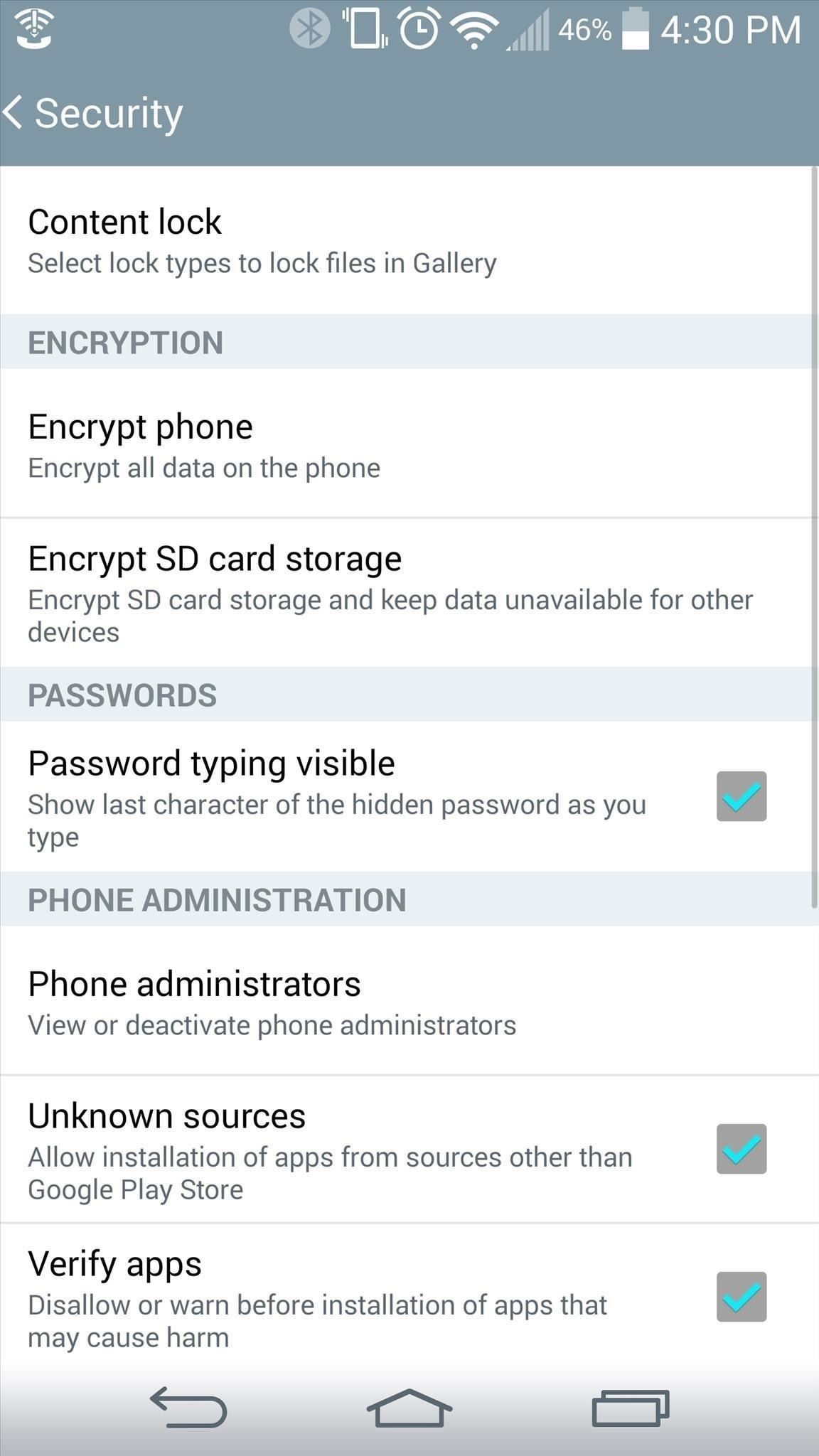
Step 1: Enable Unknown SourcesFirst thing's first. Because these keyboards are not available on the Play Store, make sure that installation of apps from "Unknown sources" is enabled.

Step 2: Choose a KeyboardWe can thank developer Ashrockr for the modded keyboards he provided us on his XDA thread. These keyboards can be installed just like any other app, so download the style you want, or all of them, to get started. Click here to download the "Android L-Style Keyboard" Click here to download the "Red Keyboard" Click here to download the "Black Keyboard" Click here to download the "Orange Keyboard" Click here to download the "Purple Keyboard" These are just a few available on the thread, with more are being added. If you have a suggestion, leave it for the developer here.

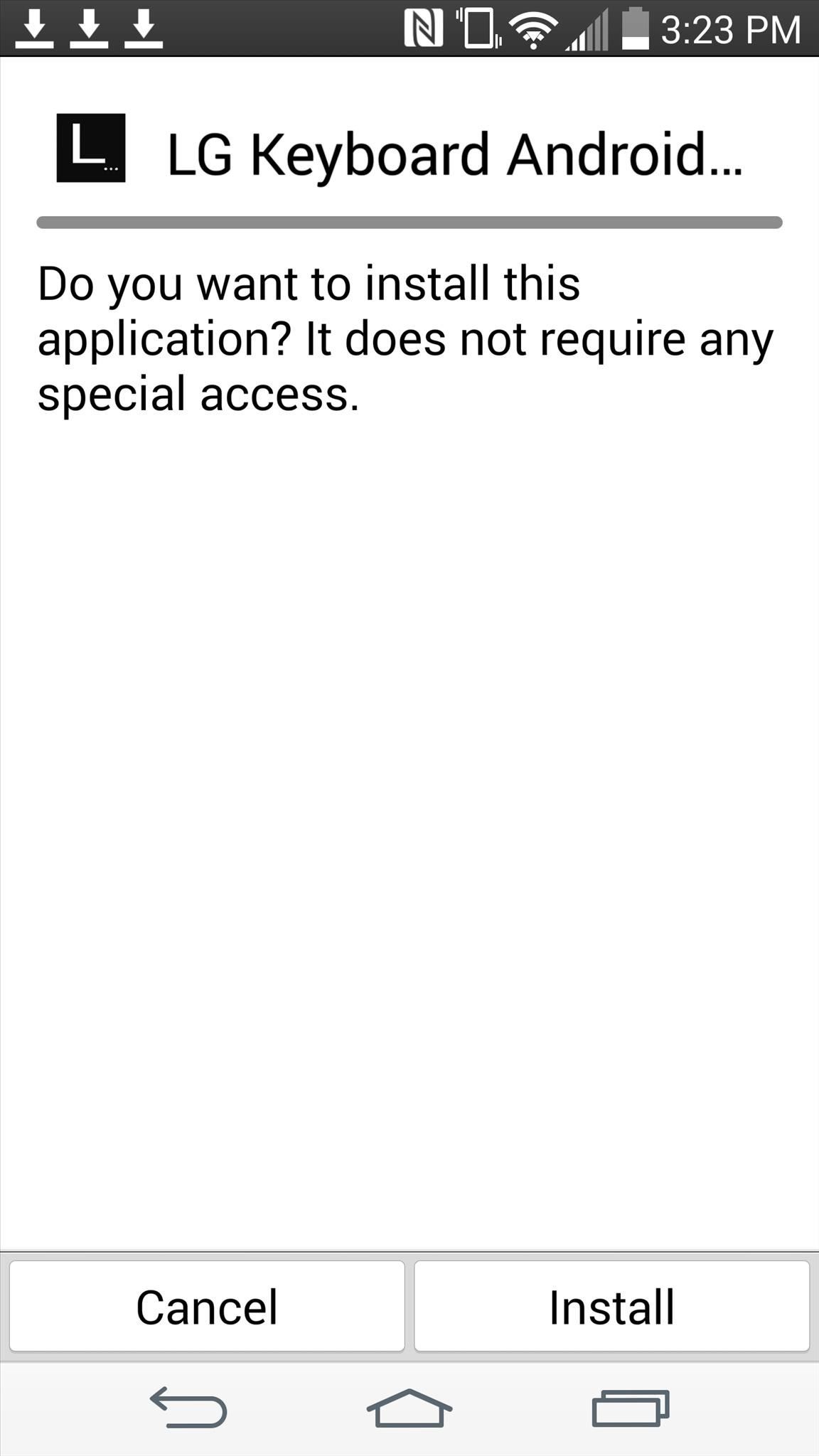
Step 3: Install KeyboardAfter downloading, select the keyboard from your Downloads app to install it, then hit Done when finished.

Step 4: Apply Your KeyboardOn your G3, navigate to Settings -> Language & Input -> LG Keyboard Settings -> Keyboard Height & Layout -> Keyboard Theme. Once there, simply select a keyboard style, check out the sample, then hit Apply. It's pretty nice that LG makes this so easy on the G3, rather than needing root or changing keyboards entirely. Let us know which one is your favorite in the comments below.


News: Save Money on Hulu by Picking the Plan That's Right for You How To: Skip Ads When Listening to iTunes Radio on Your Mac or iOS Device How To: The 10 Best Reasons to Jailbreak iOS 9 How To: Get Better Ad Blocking with This Xposed Module & AdAway
Roku vs Fire TV vs Apple TV - Which One is Right For You


UPDATE: Apple is no longer signing iOS 10.3.3, so your chance to downgrade back from iOS 11 is no longer an option. However, you can still use this guide to downgrade an iOS 11.X.X version back to a previous iOS 11 version that's still be signed by Apple. The process is the same.
How to Downgrade Your iPhone or iPad From iOS 12 to iOS 11.4


We recently covered a set of ported apps from the new cloud-based smartphone, the Nextbit Robin. These ported APKs brought two of the Robin's slick new stock apps—Camera and Gallery—to any other device, but the launcher was conspicuously absent. Don't Miss: Get the Nextbit Robin's Camera & Gallery Apps on Any Android Device
{APK} How to Install Nextbit Robin's - Android Advices


Even though Samsung hasn't released the Android 4.3 Jelly Bean OTA update for the Galaxy Tab 2 yet (there are no words about a possible launch either) you can still receive the latest features
Jelly Bean (Android 4.1) discussion - Samsung Galaxy S3


Samsung just announced that the Galaxy S8 is getting a fresh coat of paint, launching a burgundy red color of the flagship in their home market of Korea. There is currently little information about whether this color will come to the US for the S8, but this could be a preview of things to come.…
New Samsung Galaxy S9, S9 Plus With Gold and burgundy Color


How to start a group message on iPhone or iPad; How to rename a group message; How to mute or leave a group message; How to start a group message on iPhone or iPad. Launch the Messages app from your Home screen. Tap on the compose new message button (looks like a pencil and paper). Type in your first contact's name (I chose my friend Drew).
iPhone: Leave This Conversation Grayed Out or Missing? The Fix!


And with the TrueDepth camera on iPhone X and later, you can even take a selfie in Portrait mode. Before you get started, make sure you have the latest version of iOS. * You can use Portrait mode on iPhone XR, iPhone XS, iPhone XS Max, iPhone X, iPhone 8 Plus, and iPhone 7 Plus.
How to use Portrait Mode on an older iPhone | iMore


How to download your Country / region Maps for offline Navigation on your Nokia Lumia Windows Phone 8 device. With Nokia Maps now re-branded to Here Maps and Here Drive you can download maps
Download maps on your phone | Nokia phones


How To: Build a ghost phone out of an old rotary phone and headphones How To: Make a Lady Gaga caution tape costume from Telephone How To: Recreate Lady Gaga's soda can hairstyle from Telephone How To: Dial with iPhone Visual Dial (HQ) How To: Do rotary calf exercises
What can you do with an old phone - YouTube


How to Add Ringtones to iPhone Using iTunes We are living in the age of the iPhone 7, yet there is still no obvious or simple way to add custom ringtones to your device. There is a way which we will discuss here but it is a little complex and requires the use of iTunes.
4 Ways to Get a Free Ringtone - wikiHow


Oct 29, 2012 · 5 ways to keep your phone charged in a power outage. chargers are just two ways to keep your mobile phone viable during power outages. and background apps to extend smartphone battery life


How to Remove the gray ad bar from YouTube with AdBlock Plus


After a long haul, Asus is finally set to bring in the Zenfone 5Z successor. The alleged smartphone has been in the news for the rumors, and the new listing leaks some key details about Zenfone 6
Asus ZenFone 6 Coming Soon to India, Listed on Flipkart


Removing unwanted background noise is a challenge that's all too familiar to our fellow filmmakers. And although you might never have the perfect amount of silence during filming, there are a few steps you can take to minimize unwanted sounds when it comes to the post-production process.
Stopping Unsolicited Mail, Phone Calls, and Email | Consumer

How To: Block and unblock Facebook applications

How To: Block and unblock Facebook applications
This video is about how to block and unblock Facebook applications. The first step that you will have to do is to go to the application's page. Once you have found the page of the application, click "Block Application" found on the left side of the page. Once you have blocked the application, you will not receive any information from the application then the entries of the application will automatically be removed. Another way of blocking an application is by going to the home page. In the home page, click "more requests" found on the right side of the page. Once you have clicked it, you can see several applications requested by some of your friends. To block the application, just simply click on "Block The Application" and you will never get any requests after wards. Just do the same for the rest of the applications that you want to block. To undo the applications that you blocked, click "Account" found on the upper right of the page, then click "Page Settings". After clicking the "Page Settings", click on the "Applications and Websites" then click "Edit Blocked Applications". Once you have clicked it, you will see a list of your blocked applications. Just click "Remove" which can be found beside the application that you want to unblock. Once you have clicked "Remove", the application will now be unblocked. And that's how you do it! Please enable JavaScript to watch this video.

How do I block or unblock an app or game? | Facebook Help


Click in the top right of Facebook and select Settings. Click Blocking in the left column. In the Block apps section, type the name of the app or game you want to block. To unblock an app or game, click Unblock next to its name.
How to Block and unblock Facebook applications « Internet


How to Block and Unblock Facebook Applications. How to stop an application from getting your, info, sending you gifts, inviting you to join, etc. (i.e. FarmVille, mafiawars, yoville, etc).
How to Unblock Someone on Facebook - wikiHow


click on block application. Click Block when the confirmation dialog box pops up. It feels great to know that no one will ever be able to send me sunshine again. Finally, Ignore the original request that you used to click through to the application. Let's say you've blocked an application and now want to unblock it? Just go to privacy
Blocking People | Facebook Help Center | Facebook


Click in the top right of any Facebook page and select Settings. Go to the left side of Facebook and click Blocking. In the Block Users section you should see a list of people you've blocked. Click Unblock next to the name of anyone you want to unblock. Click Unblock next to the name of the person you want to unblock.


Scroll down and it will show your blocked apps!!!! Just click on UNBLOCK next to the app you want to re-enable. DONE!! Normally this would work, but when I click on Block List, the link either doesnt work or my computer is getting locked up. Is there any other way to unblock? I've left messages for facebook with no response 🙁 HELP!
How to block and hide Facebook applications and requests


We show you exactly how to unblock someone on Facebook, step by step. do is open the Facebook app you have on your Android device. is that once you unblock someone, you can't block him
Block and Unblock Facebook Applications
- YouTube


How to Unblock Someone on Facebook. This wikiHow teaches you how to remove a Facebook user from your "Blocked" list on both mobile and computer platforms. Open Facebook. It's a dark-blue app with a white "f" on it. Doing so will open your
How Do I Unblock An Application I Accidentally Blocked On


This video is about how to block and unblock Facebook applications. The first step that you will have to do is to go to the application's page. Once you have found the page of the application, click "Block Application" found on the left side of the page.
How to Remove, Block & Unblock Facebook Applications


Despite of above all factors, you can still find the way to block and unblock Facebook apps or game as easy as before. Removing these app invitations, alerts from your account can be tedious and annoying, but there is an easy way to selectively block them altogether.
How to unblock someone on Facebook - Android Authority


Facebook is powerful and affluential, even when it comes down to its applications. But some applications are just downright annoying! With the new layout and other changes affecting Facebook recently, you can take ease in the fact that blocking and unblocking Facebook applications is still as easy as before.
How to Block and Unblock Facebook App or Game Easily

How To: Change the Display Orientation & Digital Crown Position on the Apple Watch

How To: Change the Display Orientation & Digital Crown Position on the Apple Watch
There are more ways to wear an Apple Watch than just the default one.Out of the box, an Apple Watch is set up to be worn on your left wrist with the Digital Crown on the right side. But what if want the Digital Crown facing the opposite way? Or what if you're left-handed and want the Watch on your right wrist instead?Luckily, switching wrists, screen orientation, and/or the Digital Crown position on the Apple Watch is a fairly simple thing to do.

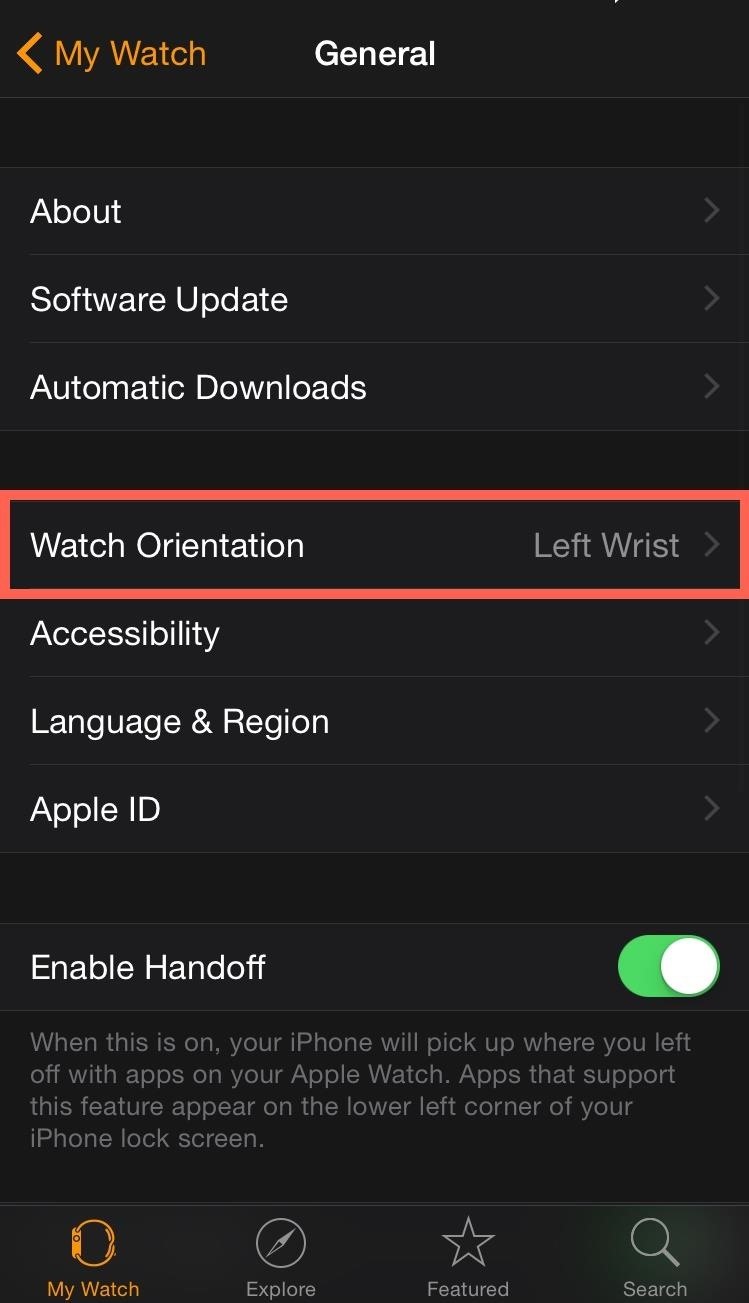
Step 1: Switch the OrientationNo matter if you want to use your Watch on your left or right wrist, head into the Apple Watch app on your iPhone, then navigate to General -> Watch Orientation.If you're wearing it on your left wrist buy want the Digital Crown facing away from your hand, select "Left Wrist" and "Digital Crown on Left Side" (as seen in the screenshots below), then head to the next step.If you're wearing it on your right wrist with the Digital Crown facing your hand, just select "Right Wrist" and "Digital Crown on the Left Side." You get the picture. Customize it however you want.

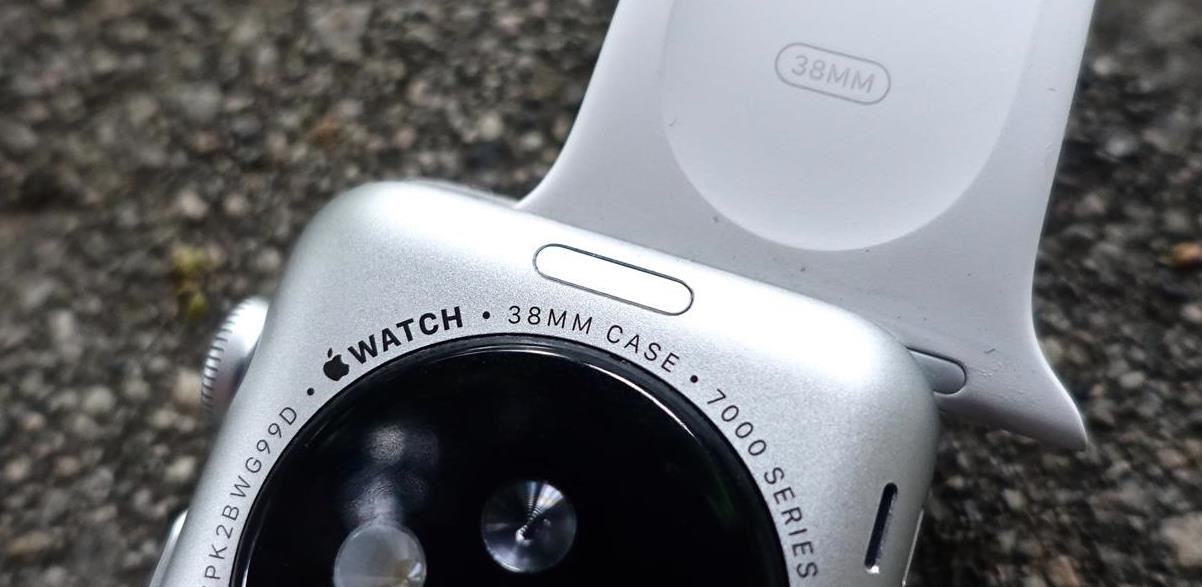
Step 2: Switch Your BandsAfter switching the watch face around, you'll might also want to swap the band around. Pressing the buttons on the bottom side of the Watch case to unlock the clasps, slide your band out, turn it around, and put it back in.

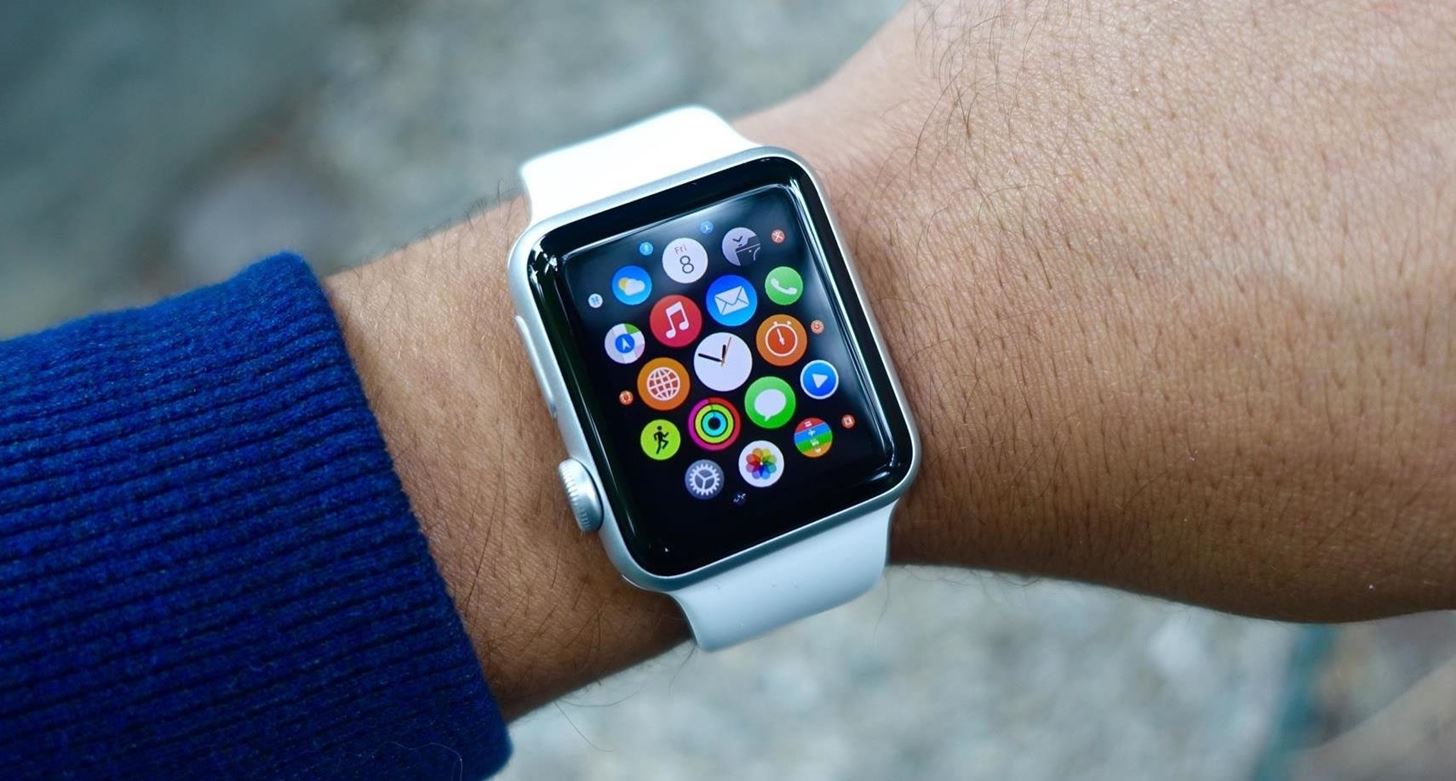
Step 3: Try It OnAfter switching the orientation and swapping the band, your Apple Watch will be ready to go and hopefully easier to use. Below I'm wearing it on my left wrist with the Digital Crown on the left side. It is a little harder to turn the Digital Crown to scroll, zoom, or adjust the display, but it lets you use your thumb for pressing buttons vs. your forefinger. Do you like using the Apple Watch this way, or with the Digital Crown on the more traditional right side?Follow Apple Hacks on Facebook and Twitter, or Gadget Hacks over on Facebook, Google+, and Twitter, for more Apple news, apps, and tips.


This video show How to make an easy and cheap DIY holographic display. Holographic pyramid using your iPhone or any other phone or screen. Como hacer un holograma fácil y barato, holograma de la
How to Make a Holographic Illusion Pyramid: 11 Steps


Home Entertainment Get a free Amazon or Roku streaming stick when you try Sling TV. Granted, you have to try it for a full three months, but the math is still way in your favor.
Sling TV offers free Amazon Fire TV stick, Roku Streaming


So as new iPhones and firmware come out, so does a new jailbreak and unlock. Here's how to do the lastest Jailbreak and Unlock on your iPhone 3g or iPhone 3GS with 3.0 firmware on it. UPDATE July 31st 2009: THE NEW 3.0.1 FIRMWARE IS OUT, IF YOU HAVE THIS FIRMWARE YOU WILL NOT BE ABLE TO JAILBREAK YET (UNTIL WE CAN JAILBREAK 3.0.1).
How to Unlock iPhone 3G & iPhone 3GS on 3.0.1 firmware


Step 2 Import YouTube video. Click "Add File" on the menu bar to select and load video(s) you want to add logo to in this YouTube Watermark Maker. Step 3 Add watermark to YouTube video. Click "Edit" > "Watermark" to add watermark to video with text or logo pictures. And choose different effects for your watermark. Step 4 Confirm the operation

How to Completely Banish Google from Your Android Experience

How to Install a custom ROM on an HTC Hero Google Android


In this video i show you how to SSH into your iphone or ipod touch. SSH allows you yo view and transfer files on your iPhone/Touch. [How To] SSH On All Devices Via USB or WiFi - Duration: 10
How to Turn iPhone into iPod Touch - AppleToolBox


I've ranted quite enough recently about the price of phones to really need to touch on that here. But, for many people, the $150 savings is reason enough to purchase this over the S10 or the Plus.
List of Smartphones Coming With Snapdragon 835 Processor


But one thing that I really hate is pressing the Home and power ON/OFF buttons hard for about ten seconds to restart iPhone as the process puts a bit of strain on the fingers. Luckily, some tricks allow me to restart my iPhone/iPad without power and Home buttons. iOS 11 lets you easily restart your device through AssistiveTouch.
Restart iPhone Without Power Button & Home Button Using 4 Methods


Any mere mortal can use the Phone app on an Android phone to key in a number. To take your dialing skills up a notch, consider some of the special tricks of speed dialing. Assigning numbers to speed dial Not every Android phone features speed dial. To see whether yours does, heed these steps: Start […]
How to Speed Dial With Your Blackberry - wikiHow


This concludes our tutorial on how to deactivate your online status on Facebook Messenger or Facebook chat using the iPhone 6 If you have any additional questions on how Facebook and any other related applications work, leave your questions in the "Comments" section below.
How to hide my online status in Facebook - Quora

How To: Change ringtones on the Nokia N97

How To: Change ringtones on the Nokia N97
In this tutorial, we learn how to change ringtones on the Nokia N97. From the main menu, you will first tap the menu key. After this, scroll down the menu list and tap on the settings menu. From here, tap on profiles and then tap normal. After this, tap on 'customize' and then tap on the ringing tone option. From here, you can choose which tone you want to play when someone calls your phone. Once finished, select the song and then return back to the ringtone menu. If you're finished, go back to the main menu on the phone and you're done! Please enable JavaScript to watch this video.


How to Get Sony Stamina (Power Saver) Mode? One of the major drawbacks of having android Smartphone is reduced battery life; you simply have to rely on power saver mode to ensure increased battery life but still, due to those apps running in the background and consuming your battery life, the battery doesn't last long for a day.
6 Easy Ways to Increase Battery Life on Your Android Device


Launch Internet Sharing, found in the Start menu on your AT&T Samsung cell phone. Open the application. Configure Internet Sharing. The status menu should read "Disconnected." Under the PC Connection setting, select the method you will use to connect your cell phone to the computer--USB and Bluetooth PAN are the choices.
Can I connect my sprint internet connection to my


Carrier-branded Galaxy S9 models come with a ton of bloatware that you usually can't get rid of without rooting. With a little digital elbow grease, however, there is a way to disable bloatware on your S9 or S9+, and it's a lot safer that attempting to root and modify you precious device.
The Safest Way to Disable ALL Bloatware on Your Galaxy S10


Bloatware remains one of the biggest problems with Android, especially when tied to a carrier. Removing bloatware usually requires you to take extreme measures like rooting. Unfortunately, the Galaxy S10 falls under this annoying umbrella, but there's an easy workaround.Package disablers designed for Samsung phones are all over the Google
The Safest Way to Disable ALL Bloatware on Your Galaxy S10


How To: Root Your Samsung Galaxy S4 Find Out Who's Trying to Unlock Your Samsung Galaxy S III with the Hidden Eye Android App 37 Comments
8 hidden features every Samsung Galaxy phone user should know


News: Google's New App Fixes Everything Annoying About Apple's Live Photos How To : The 8 Best New Features in iOS 11's Photos App for iPhone News : Android Is Coming for Your Car, TV, & Wrist
News: Google Finally Releases ARCore 1.0 for Android Users


If you're having trouble reading your iPhone, you can adjust its font display. Here's how to change the font size on an iPhone and enable bold text.
Changing Fonts Style On iPhone 8 And iPhone 8 Plus


How To Overclock Your Monitor to a Higher Refresh Rate Before overclocking a display, it should be noted that this darkens the screen, can cause artifacts, lowers gamma, and oftentimes voids
A light overclock | Tom's Hardware Forum


Change password. Change your Google Account password. In order to change your password, you need to be signed in. Change your Google Account password.
How to Change Your Google Password - wikiHow


Unroot Samsung Galaxy Note5 and restore back to official stock firmware using Smart Switch (First Method) There are two effective method to unroot the Samsung Galaxy Note5. The first method is by using Samsung's owned app called "Smart Switch" that allows Galaxy Note 5 users to back up and transfer files but it also capable for restoring
Unroot and Restore Galaxy back to Stock using Samsung Odin


The Samsung Galaxy S7 edge (left) and the Galaxy S7 are finally here. Killer Displays. The only differences between the two handsets spec-wise are the display size—S7 edge has a 5.5" curved display, compared to the S7's 5.1" display—and the battery size—3,600 mAh for the S7 edge; 3,000 mAh for the S7.
Galaxy S7 and Galaxy S7 edge home button scratching too